You don’t need another “ultimate” list of Chrome extensions. You need a tight, no-fluff toolkit that actually helps you create faster, publish cleaner, and grow smarter. So let’s skip the fluff and get to the stuff you’ll actually install.
If you publish content in 2025, these extensions will make your workflow smoother, your posts sharper, and your sanity… intact.
Research Faster, Write Smarter
You can’t create great content if your research feels like a tab tornado. These extensions tame the chaos and sharpen your ideas.
Glasp or Liner (Web Highlighters)
You highlight. You forget.
You cry. Tools like Glasp and Liner let you highlight any webpage, save quotes, and tag them for later.
- Why it’s gold: Build your own swipe file from the open web.
- Bonus: One-click export to notes or docs for painless drafting.
Perplexity – Quick Research
Perplexity’s Chrome extension gives you instant summaries, citations, and follow-up questions without a rabbit hole.
- Use it for: Outlining topics, checking facts, and getting sources you can actually cite.
- Pro tip: Ask for “opposing viewpoints” to avoid sounding like a brand press release.
OneTab – Tab Detox
Fifty tabs open? OneTab puts them into a single list.
Your laptop fan will stop screaming.
- Best for: Research sprints and batching sources.
- FYI: You can share a collection as a public page with collaborators.
Draft, Edit, and Polish Like a Pro
You want clean writing that sounds like you. Not like a robot. These help.
Grammarly or LanguageTool
Both nail grammar, tone, and clarity. Grammarly has the flashier UI. LanguageTool offers strong multilingual support and fewer false positives IMO.
- Use for: Headlines, social captions, and emails that don’t sound like an auto-reply.
- Tip: Turn off “rewrite” suggestions when you want to keep your voice.
Wordtune Read or SMMRY
Summarize long PDFs and pages into digestible notes.
Great for prepping scripts or briefs.
- Why it helps: Cuts reading time without losing the point.
- Pair with: Glasp/Liner for highlights + notes perfection.
Just Read
Strips pages down to pure text. Perfect for distraction-free reading and screenshots for citations.
- Bonus: Export clean PDFs for clients or your files.

SEO Without Tears
You don’t need a PhD in SEO. You need real-time hints that keep you on track.
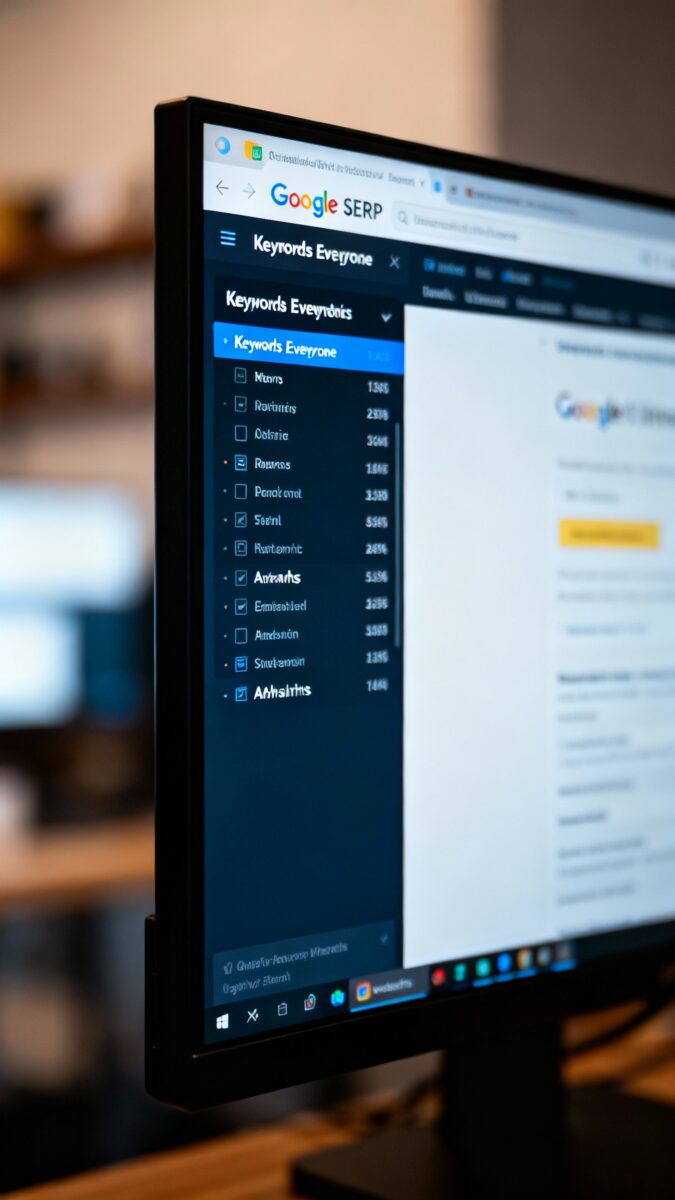
Keywords Everywhere
Shows search volume, CPC, and related keyword ideas right inside Google and YouTube.
- Why it’s useful: Validates topics before you waste time writing.
- Smart move: Look at “People also search for” and competitor keywords to spark angles.
Ahrefs SEO Toolbar or MozBar
Quick domain metrics, link counts, and SERP analysis in one click.
- Best for: Sizing up competitors, checking page strength, and finding link opportunities.
- IMO: Ahrefs is stronger for detailed SERP scraping; MozBar is simpler and budget-friendly.
Detailed SEO Extension
Shows headings, schema, and meta data instantly.
Fix your title and description before you publish, not after.
- Killer feature: See headings structure at a glance to catch messy H2/H3 hierarchies.
Design, Screenshots, and Visual Workflow
You don’t need Photoshop for every thumbnail. You need tools that ship fast.
GoFullPage
Full-page screenshots for blog mockups, tutorials, and competitor teardowns.
- Use it for: Before/after redesigns, documentation, or sharing UX notes with your team.
Nimbus Capture or Awesome Screenshot
Capture, annotate, blur, and record your screen. Great for how-to content and client updates.
- Pro tip: Blur private data automatically to save editing time.
ColorZilla + WhatFont
Grab hex colors and identify fonts on any website.
- Why you care: Keep brand consistency across thumbnails, carousels, and blog visuals.
YouTube, Social, and Video Tools
If you make video, these save hours and boost discoverability.
vidIQ or TubeBuddy
Keyword suggestions, tag tracking, and competitor analysis for YouTube.
- VidIQ is better for trends and velocity.
- TubeBuddy shines for bulk updates and A/B testing thumbnails.
Transkriptor or Web Captioner
Fast transcripts and captions directly in the browser.
- Benefit: Turn transcripts into blog posts, LinkedIn posts, or newsletter nuggets.
Save to Notion or Save to Pocket
Collect ideas for scripts and reels with one click.
- Workflow: Save > Tag by content type (Short, Long, Tutorial) > Batch script later.
Productivity That Actually Sticks
You don’t need a new system.
You need small guards against chaos.
Toggl Track or Clockify
Track how long you spend on draft, edit, and promo. You’ll price better and plan smarter.
- Insight: Most creators underestimate editing time by 30-50%. Don’t be that person.
Inbox When Ready
Hides your inbox by default so you can send emails without falling into the reply black hole.
- Great for: Publishing days when focus matters.
Tab Suspender
Auto-suspends idle tabs to save memory and battery.
Your laptop thanks you.
Privacy, Compliance, and Credibility
Trust matters. So do legal lines you don’t want to cross.
uBlock Origin
Blocks ads, trackers, and junk. Pages load faster and your data stays yours.
- Bonus: Fewer rogue scripts breaking pages while you work.
BuiltWith or Wappalyzer
See the tech stack behind any site.
- Use it for: Competitor analysis, affiliate picks, or client audits with receipts.
Checkbot or Lighthouse (via Chrome DevTools)
Audit performance, accessibility, and SEO basics in minutes.
- Why it matters: Slow sites bleed traffic.Accessibility wins you audience and goodwill.
Workflow Recipes You’ll Actually Use
Let’s make these extensions play nice together.
Rapid Research to Outline
- Use Perplexity to get sources + counterpoints.
- Highlight with Glasp/Liner and tag by section.
- Summarize long reads with Wordtune Read.
- Check SERPs with Keywords Everywhere + Ahrefs Toolbar.
Draft to Publish
- Write in your doc with Grammarly/LanguageTool active.
- Scan structure with Detailed SEO Extension.
- Screenshot visuals with Nimbus; grab brand colors with ColorZilla.
- Run a quick Lighthouse audit before you hit publish.
FAQ
Do I need both Grammarly and LanguageTool?
You don’t. Pick one based on your needs. Grammarly feels more polished and integrates everywhere, while LanguageTool handles multilingual content and custom style rules well.
Try both for a week and keep the one that nags you less while still helping.
Are paid plans worth it for SEO extensions?
Often, yes. The free versions of Keywords Everywhere or Ahrefs/MozBar give you a taste, but paid plans unlock volume ranges, competitor intel, and reports you’ll actually use. If SEO drives your traffic, a small monthly fee pays back quickly.
Which screenshot tool should I choose?
GoFullPage for full-page captures; Nimbus or Awesome Screenshot for annotation and blurs; Loom if you want quick video explainers.
If you teach or onboard clients, Nimbus hits the sweet spot for features vs. simplicity IMO.
How do I avoid extension bloat?
Install in layers. Keep daily drivers always on (uBlock, Grammarly, Keywords Everywhere). Enable research or video tools only when you need them.
Also, audit monthly and nuke anything you haven’t used in two weeks.
Will these tools replace creativity?
No chance. They just remove friction. You still bring the voice, insight, and stories.
Tools help you ship more often and with fewer mistakes—like power steering for your brain.
Are these safe to use?
Stick to well-reviewed extensions with transparent permissions. Check the developer, last update date, and reviews. For anything that touches private data, read the privacy policy and consider a separate Chrome profile.
Bottom Line
You don’t need 40 extensions.
You need the right dozen that make research faster, writing cleaner, SEO simpler, and visuals easier. Start with Perplexity, Glasp/Liner, Grammarly or LanguageTool, Keywords Everywhere, Detailed SEO Extension, Nimbus, uBlock Origin, and vidIQ/TubeBuddy. Add the rest as your workflow matures.
Build a stack that serves your creative momentum—and gets out of your way.
EXPLORE MORE ON VIBE FOR CREATORS
Learn how to build sustainable income streams and grow with intention inside DIGITAL BUSINESS & INCOME .
Discover tools, platforms, and workflows that support your creative journey in CREATOR TOOLS & RESOURCES .
Discover how artificial intelligence is transforming the creator economy inside AI FOR CREATORS .
Explore powerful tools that help digital creators write, design, and grow faster in AI TOOLS FOR CREATORS .
Learn how to create virtual influencers, digital avatars, and AI-powered creator brands in AI AVATARS & VIRTUAL CREATORS .
Master Pinterest strategy, content creation, and long-term visibility with insights from PINTEREST & CONTENT STRATEGY .
Learn authentic marketing, branding, and audience connection inside MARKETING & BRAND TRUTHS .
Strengthen your confidence, clarity, and inner alignment through PERSONAL GROWTH & MINDSET .
Explore mindset shifts, creator confidence, and intentional growth in CREATOR MINDSET .
Download helpful resources, guides, and tools designed to support your journey in FREEBIES & PRINTABLES .